
How to Install
How to Install DriveNova
Install DriveNova on your Android car player and make it your home screen. It takes about five minutes and no computer is needed.
- About 5 minutes
- No computer needed
- One-time licence
- Android 5.0 or newer
Before you start
Will it work on my car player?
Android 5.0 or newer
Most Android car players (Android head units) work, including 2 GB models.
Screens 1024×600 to 2000×1200
DriveNova scales to your screen. Wide 1280×720 and 1024×600 screens are the most common.
Internet when you need it
The map, weather, radio and voice commands need internet, for example your phone’s hotspot. Everything else works offline.
Google Play services
Needed only for the live Google map in the cards. Without it, DriveNova shows a styled map picture and navigation still works.
Step by step
Install DriveNova in seven steps
Step 1 · Download
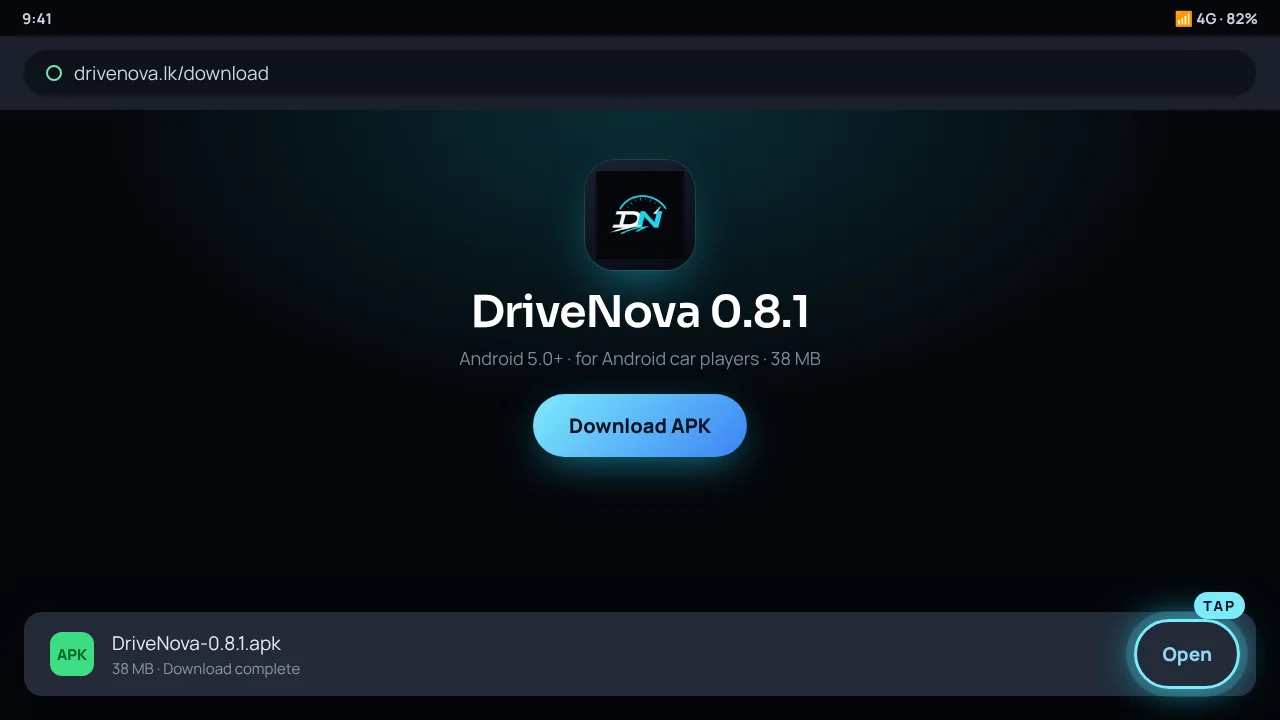
Download the APK on your car player
On the car player, open the browser and go to drivenova.lk/download. Tap Download APK. When the download is finished, tap Open.
- No browser on your car player? Download the APK on a computer or phone, copy it to a USB drive and plug it in. Open it with the file manager.
Step 2 · Allow
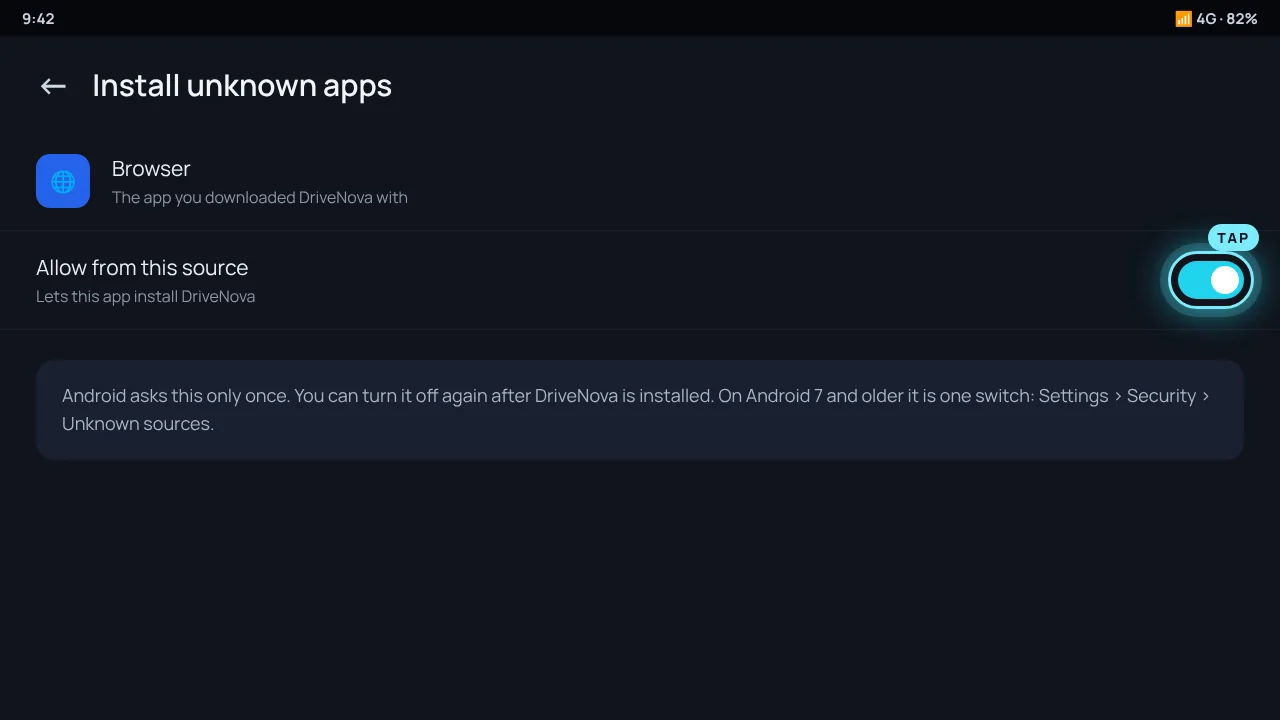
Allow the install
Android only installs apps from the Play Store unless you allow it. If it asks, tap Settings and turn on Allow from this source, then go back.
- On Android 7 and older it is one switch: Settings › Security › Unknown sources.
- You can turn it off again after DriveNova is installed.
Step 3 · Install
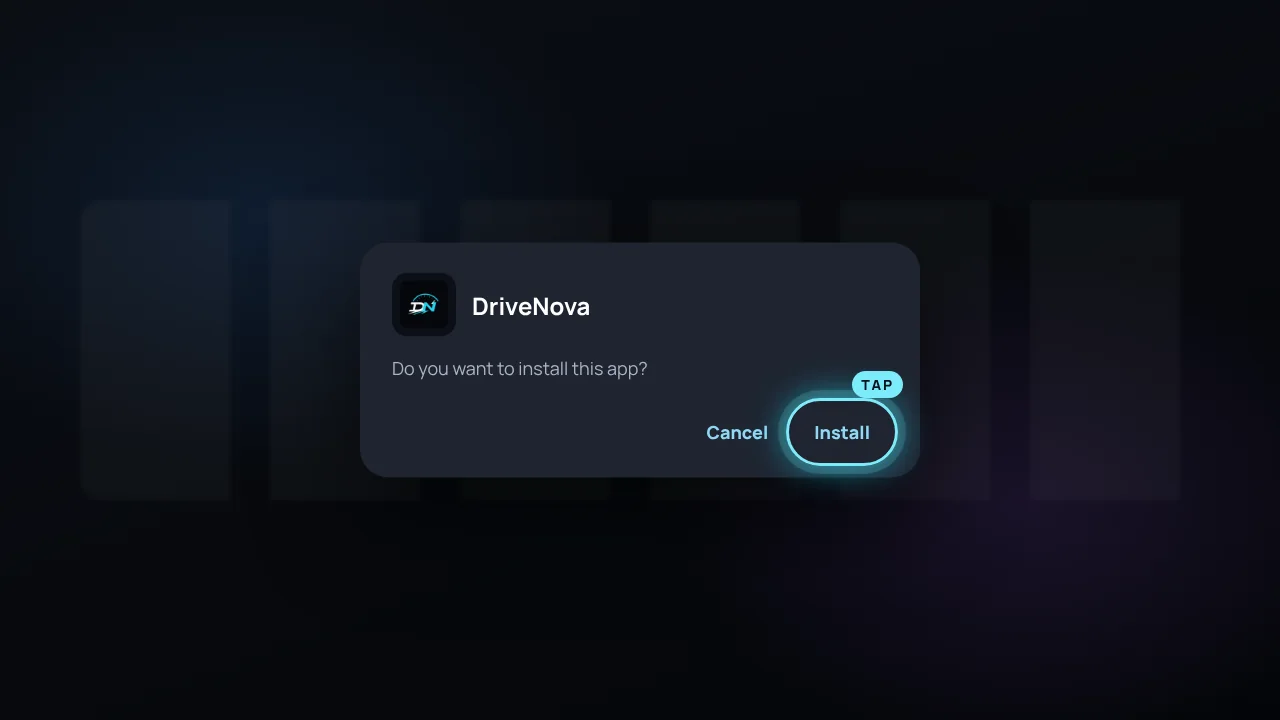
Tap Install
Android asks if you want to install DriveNova. Tap Install, wait a few seconds, then tap Open.
- “App not installed”? An older DriveNova from another source is on the car player. Uninstall it first, then install again.
Step 4 · Home screen
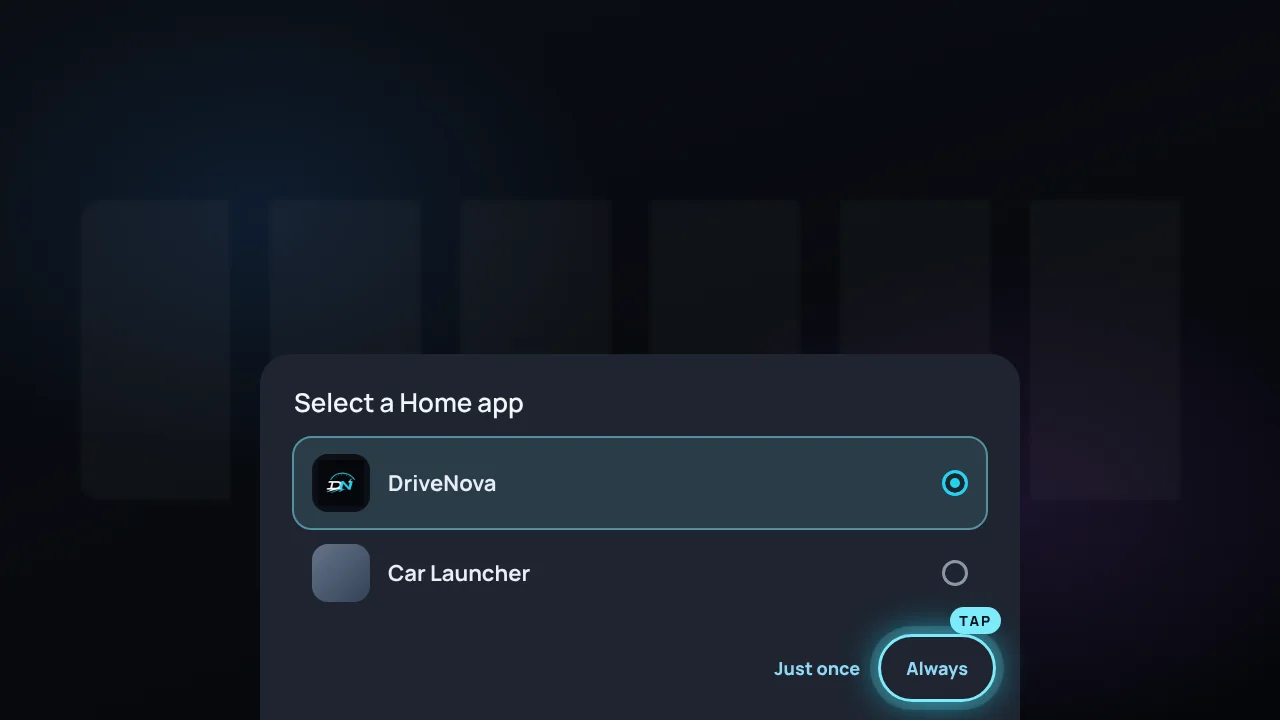
Make DriveNova your home screen
Press the car player’s Home button. Choose DriveNova, then Always. From now on the Home button always brings you back to your DriveNova dashboard.
- Not asked? Open Android Settings › Apps › Default apps › Home app and choose DriveNova. Some car players also have a “Default launcher” option in their car settings.
Step 5 · Licence
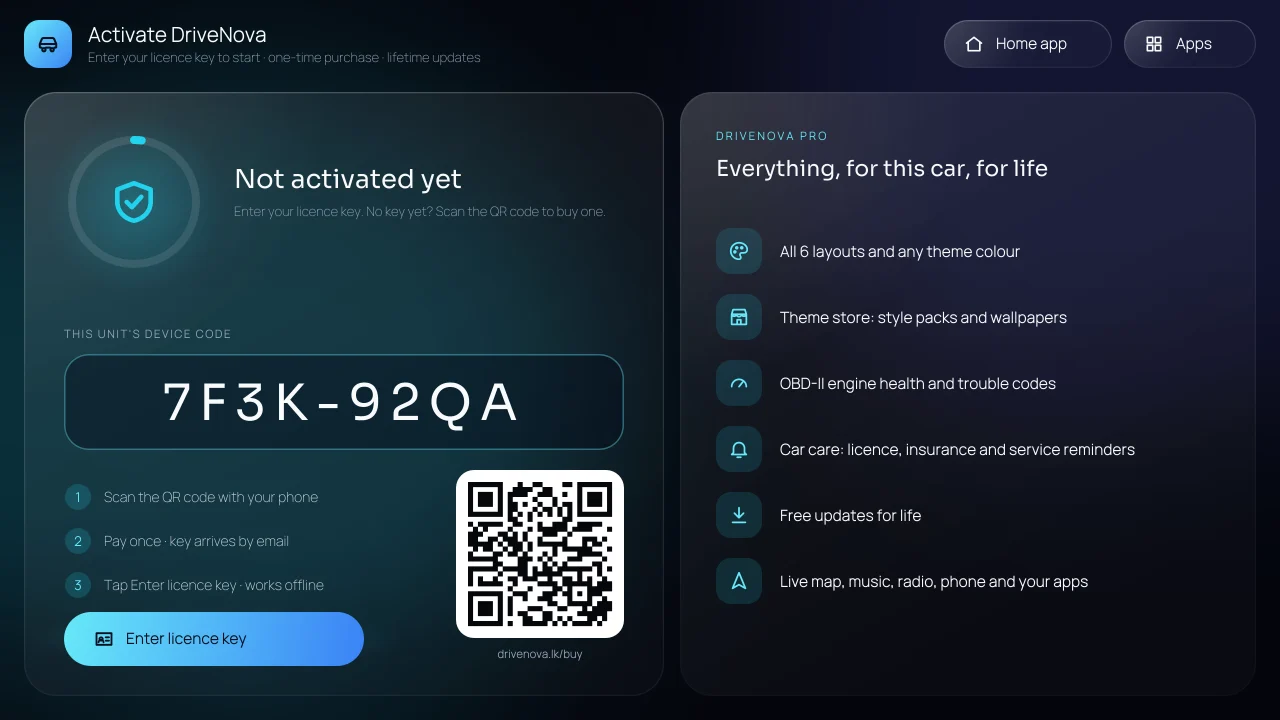
Activate your licence
The first screen of DriveNova shows your device code and a QR code. Scan the QR code with your phone (or open the Buy page and type the code), and pay with PayPal, a card or a bank transfer. Your licence key arrives by email: tap Enter licence key, type it and tap Activate. DriveNova opens fully.
- Activation works even without internet.
- The key is made for this car player’s device code, so type the code carefully.
- Until you activate, Apps and Home app at the top let you use your other apps and the car player’s own home screen.
Step 6 · Permissions
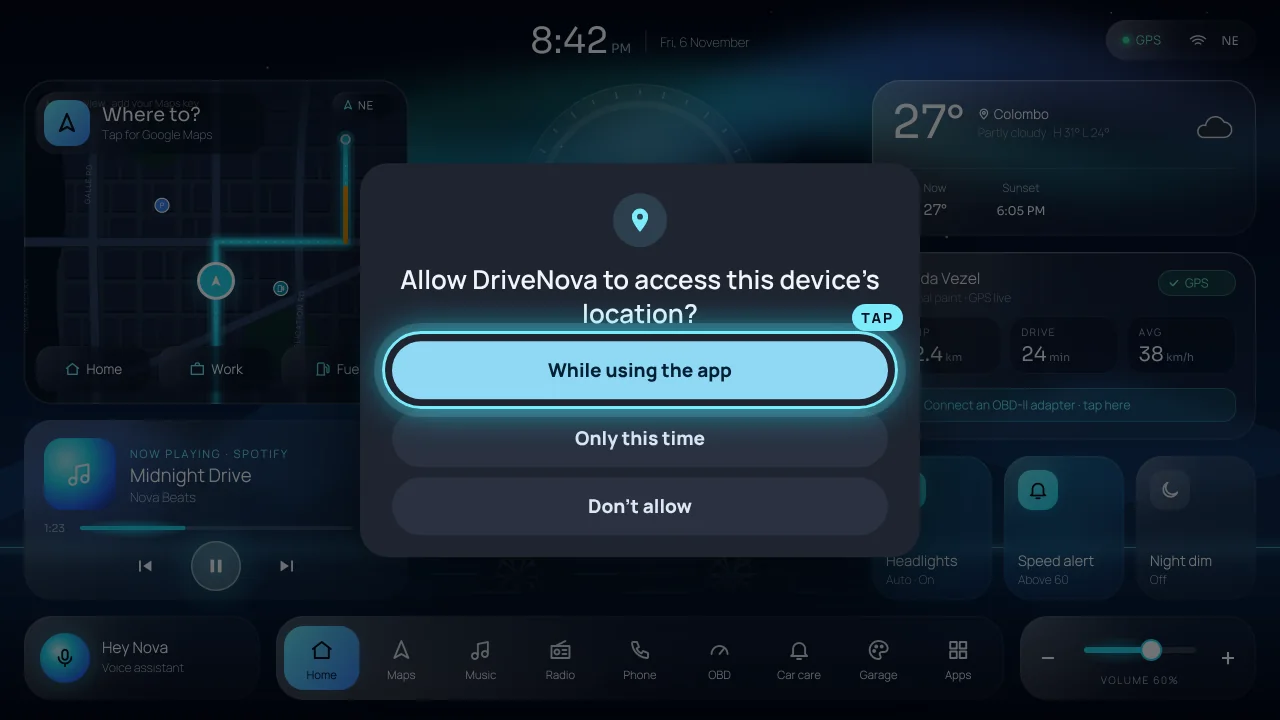
Allow what DriveNova asks for
Tap While using the app for location: DriveNova needs it for your speed, the map and the weather. Allow the microphone for “Hey Nova”.
- Tap the music card once and turn on DriveNova in Notification access, so the song and the next turn from Google Maps show on your home screen.
Step 7 · Your car
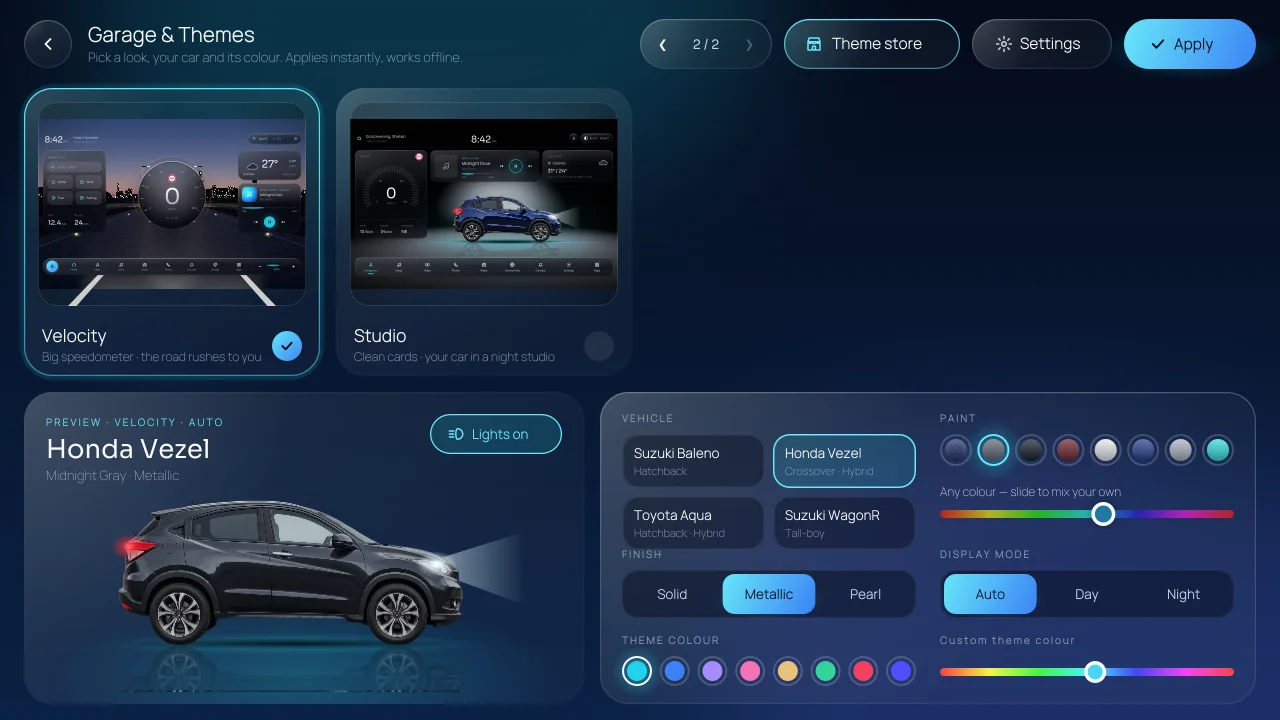
Pick your car, its colour and a layout
Open the Garage from the dock. Choose your car, its paint and a layout, then tap Apply. Every layout and colour is yours.
- Set your Home and Work addresses in Garage › Settings so “Hey Nova, take me home” works.
Other ways
More install options
From a USB drive
Download the APK on a computer, copy it to a USB drive and plug it into the car player. Open the file with the car player’s file manager and continue from step 2.
Updating later
You never need to do this again. When a new version is out, DriveNova shows a banner: tap it, then Download & install. Your settings and licence stay.
Need a hand?
Send us a photo of the screen and your car player’s model on WhatsApp (+94 70 216 7589). We usually reply the same day.
Help
If something goes wrong
It says “App not installed”
An older DriveNova from a different source is probably installed. Uninstall it first (Android Settings › Apps › DriveNova › Uninstall), then install again.
The Home button still opens the old screen
Open Android Settings › Apps › Default apps › Home app and choose DriveNova. Some car players also have a “Default launcher” or “Home app” option in their own car settings.
There is no Install unknown apps option
On Android 7 and older it is one switch: Android Settings › Security › Unknown sources.
The song name or the next turn does not show
Tap the music card, or go to Garage › Settings › Song & next-turn info, and turn DriveNova on. If it was on already, turn it off and on again.
The map card shows a picture, not the live map
The live map needs internet and Google Play services. Check Settings › Live map, which tells you what is missing.
Still stuck?
Send us a message on WhatsApp (+94 70 216 7589) with a photo of the screen and your car player’s model. We will help.
All set? Unlock everything.
Rs 999, once, for one car player. Every layout, colour and feature, with free updates.